Batch Management
Batch Management is the control centre for all live work inside DocView Capture Web. Supervisors and operators use it to find batches, inspect their status, and take corrective action when processing stalls or priorities change.
Main Batch List
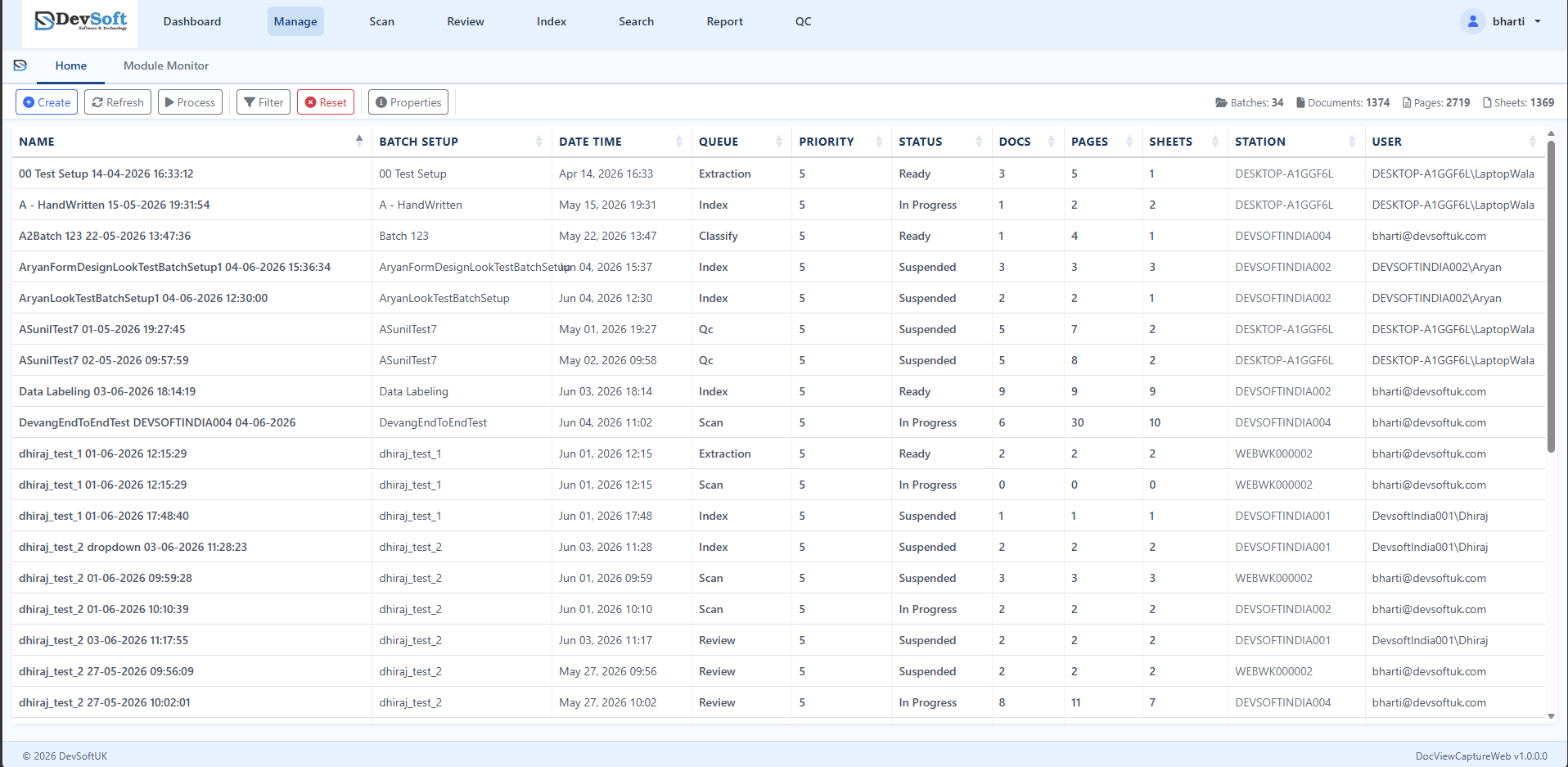
The main batch list displays details for all live batches:
- Name – The name of the batch.
- Batch Setup – The profile setup assigned to the batch.
- Date Time – The creation timestamp.
- Queue – The active processing module the batch is in (e.g. Scan, QC, Index).
- Priority – Priority rating (typically 1 to 5).
- Status – Current processing state (Ready, In Progress, Suspended, Completed, Error).
- Docs / Pages / Sheets – Page counts and structural statistics.
- Station – Workstation ID where the batch was created.
- User – The operator who last processed the batch.
Operational Toolbar
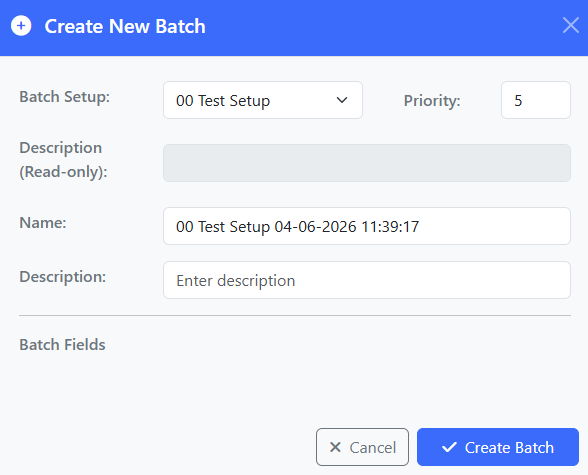
- Create – Create a new batch. Select the Batch Setup and enter details.
- Refresh – Refresh the batch table.
- Process – Push a batch into the next stage of the workflow.
- Filter / Reset – Filter by multiple criteria.
Right-Click Context Menu Actions
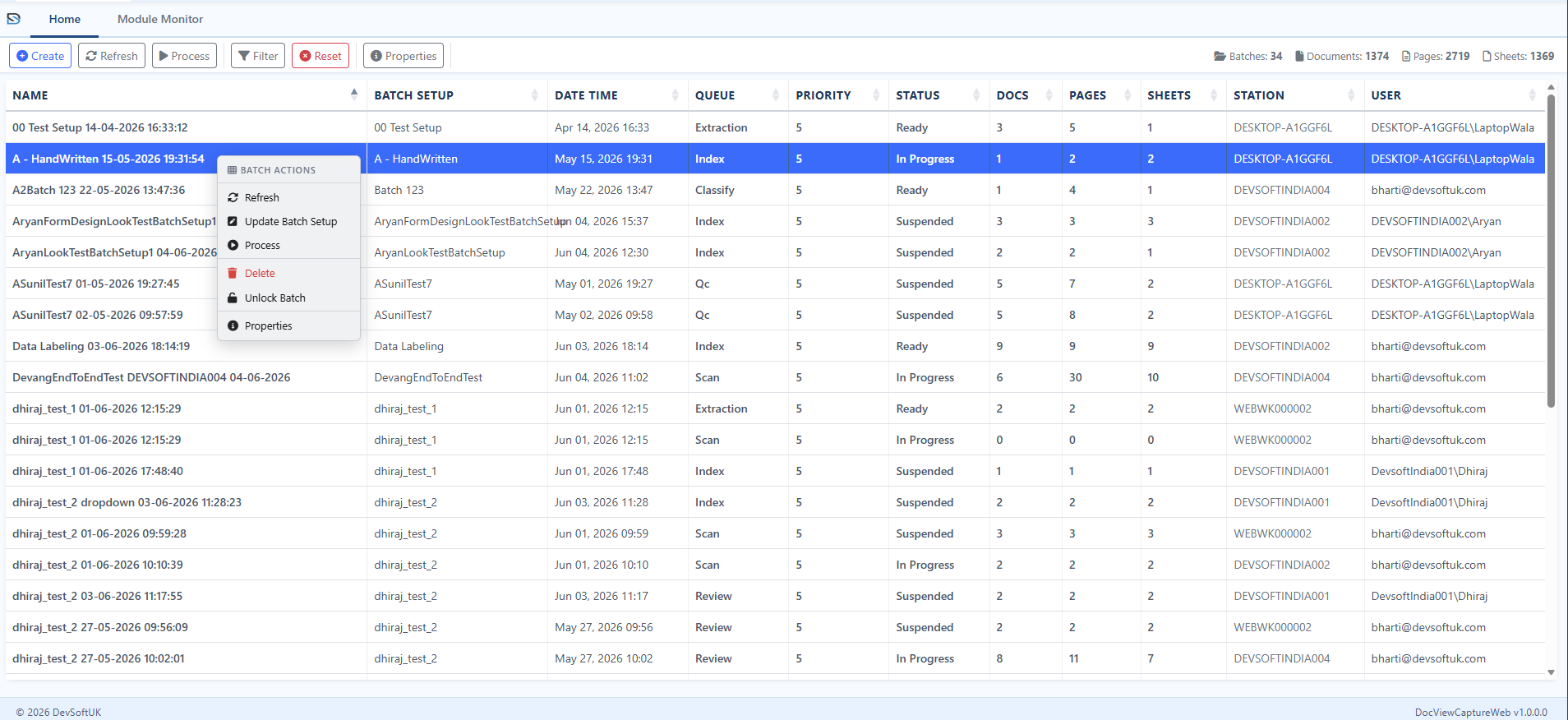
Right-click any batch row to trigger context-specific actions:
- Refresh – Reload this batch's status.
- Update Batch Setup – Re-map the batch to a different profile setup.
- Process – Submit the batch to the next processing step.
- Delete – Remove the batch from the system (requires administrator privileges).
- Unlock Batch – Force-unlock a batch that got stuck or left in an "In Progress" lock state.
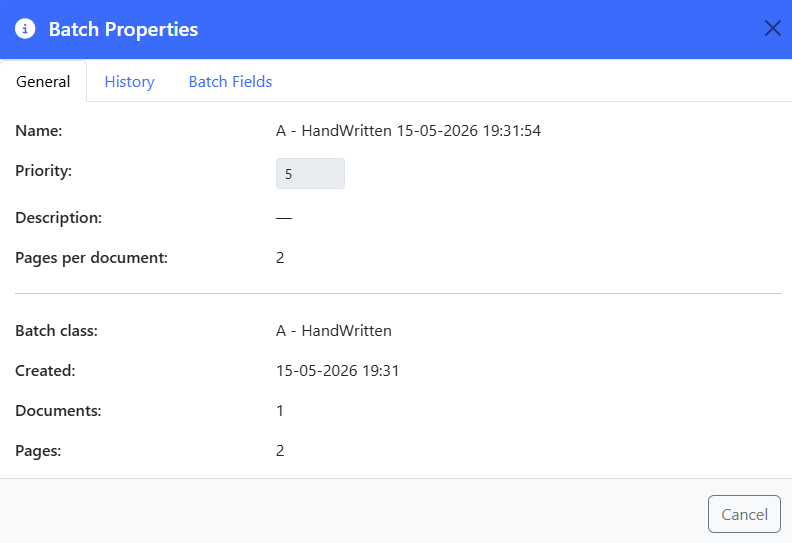
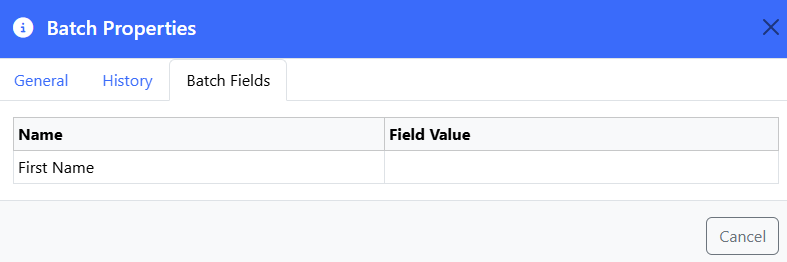
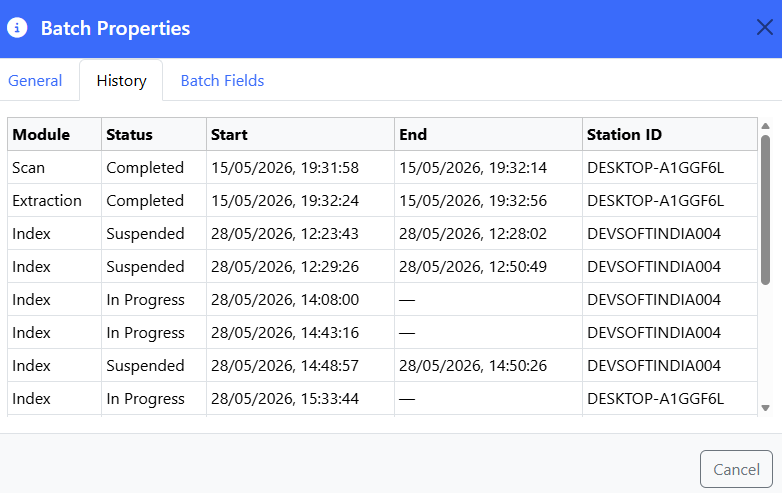
- Properties – Open the Batch Properties modal.
Updating Batch Priority
To adjust batch priorities:
- Right-click the batch row and select Properties (or select a batch and click Properties in the toolbar).
- On the General tab of the Batch Properties dialog, locate the Priority input field.
- If the batch is in the Ready state, you can edit the priority value (from 1 to 5) and click the Update button next to it.
- If the batch is actively "In Progress" or "Suspended", priority changes are disabled.
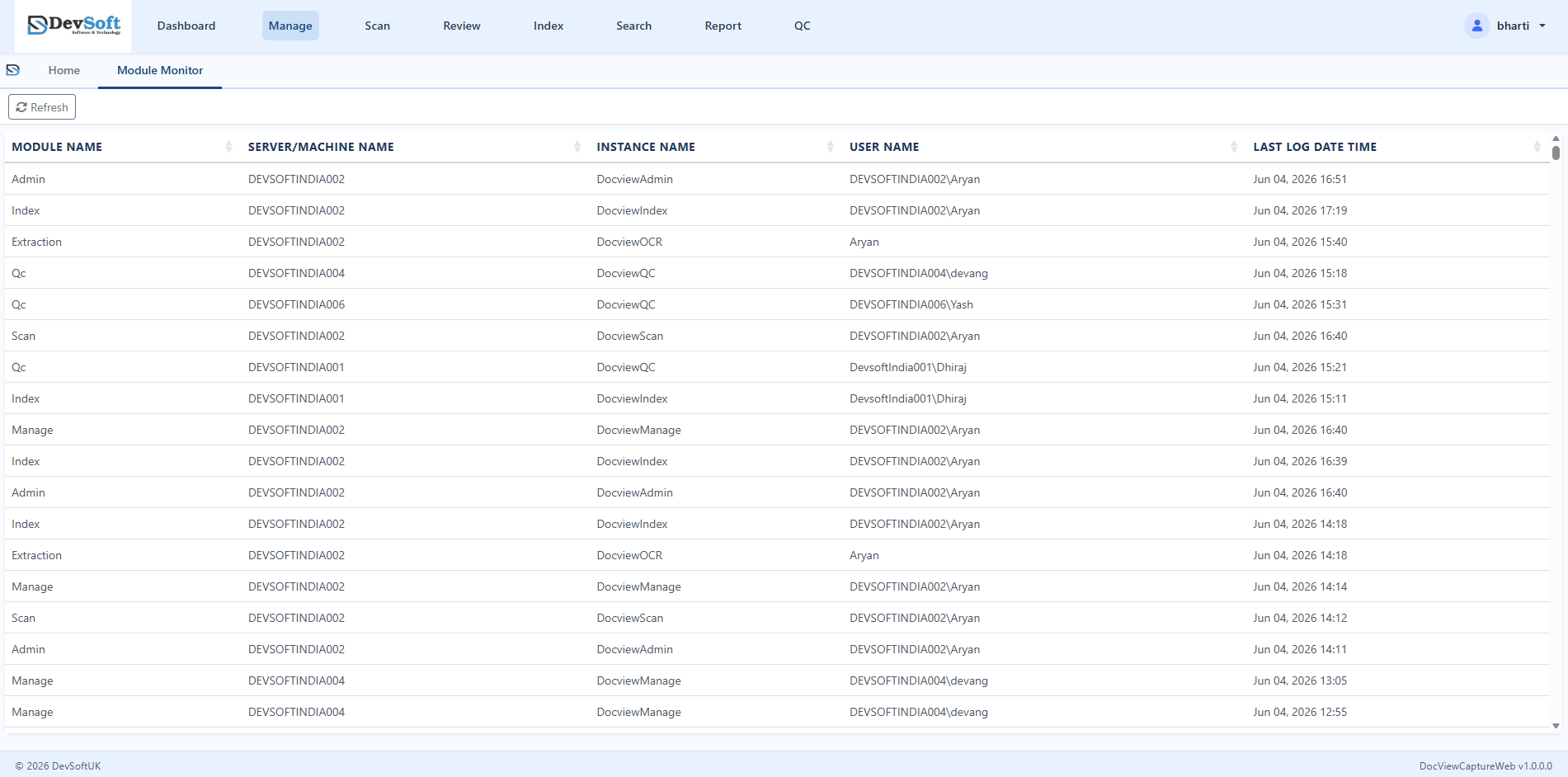
Module Monitor Tab
The Module Monitor tab provides extra visibility into system health. Use it to check running background engines and active workstations:
- Module Name – Displays the name of the active processing engine (e.g. Scanning, QC, Indexing).
- Server/Machine Name – The server hosting the service.
- Instance Name – The unique identifier for this instance of the module.
- User Name – The user account executing the service.
- Last Log Date Time – The timestamp of the last heart-beat log, useful for diagnosing engine health.