Dashboard
Overview
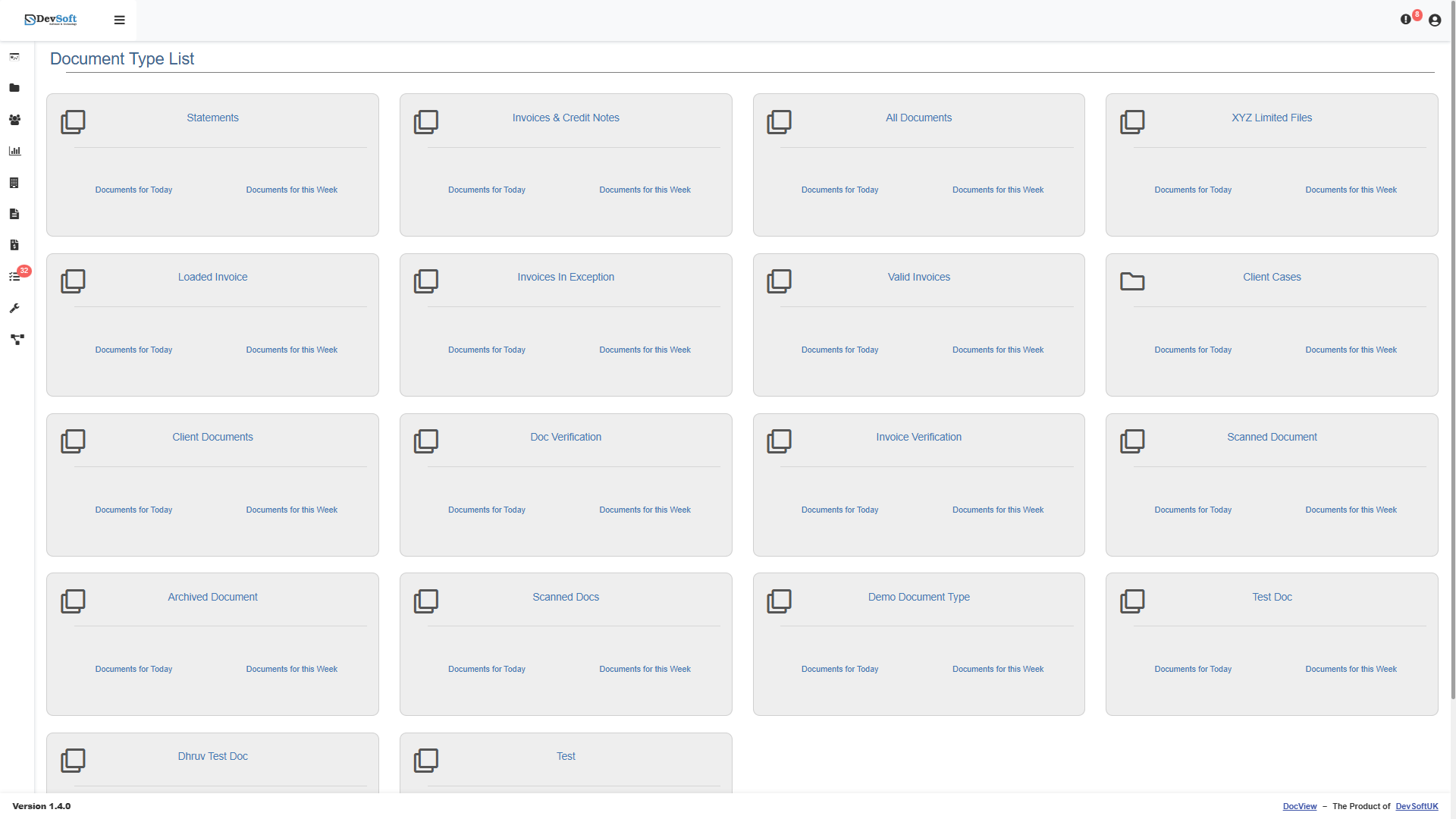
The Dashboard is the primary hub you see after logging in. It serves as your main entry point to the system, displaying all the Document Types you have access to, along with intelligent search tools.
Document Type Cards
The core of the Dashboard is a grid of Document Type cards (e.g., Invoices, HR Records, Contracts). The cards visible to you depend on your group memberships and role permissions.
Each card displays:
- An Icon & Title: Quickly identify the document category.
- Saved Filters (Smart Links): If your administrator has set up saved filters for a document type (such as "My Pending Invoices" or "Recent Contracts"), these will appear directly on the card. Clicking a filter takes you straight to that pre-filtered list of documents.
Clicking the main title of a card opens the full, unfiltered document list for that specific Document Type.
Chat With Documents (AI Assistant)
The Dashboard features a built-in intelligent chatbot to help you query your documents quickly without navigating through complex search screens.
- Opening the Chat: Click the floating chat icon (usually in the bottom corner) to open the chat window.
- Asking Questions: Type questions like "What is the maximum total amount for Supplier XYZ Ltd?" or "What is the latest invoice date for Supplier XYZ?".
- Smart Answers: The chatbot will interpret your question, search your authorised documents, and provide a direct answer.
- Source Links: Alongside the answer, the chatbot provides a direct PDF link to the exact document it used to find the information, allowing you to instantly verify the source.
Navigation & The Document Tree
- Left Sidebar: Use the sidebar menu to quickly access other modules like Upload, Workflows, or Reports.
- Document Tree Panel: If you prefer a hierarchical view instead of cards, you can toggle the Document Tree Panel from the top navigation bar. This panel slides out to show your Document Types and Sub-types in a classic, collapsible folder structure.