Review
Review is the final checkpoint before documents are released for export or permanent storage. Supervisors or senior operators use it to verify that indexed data is accurate, images are legible, and document classification is correct. Catching errors here prevents costly corrections later in the business process.
Opening a batch for Review
The Review batch list shows batches awaiting final verification. Click a batch name to open it in the review workspace.
Review Workspace Layout
The Review workspace uses a three-panel layout to inspect and classify documents:
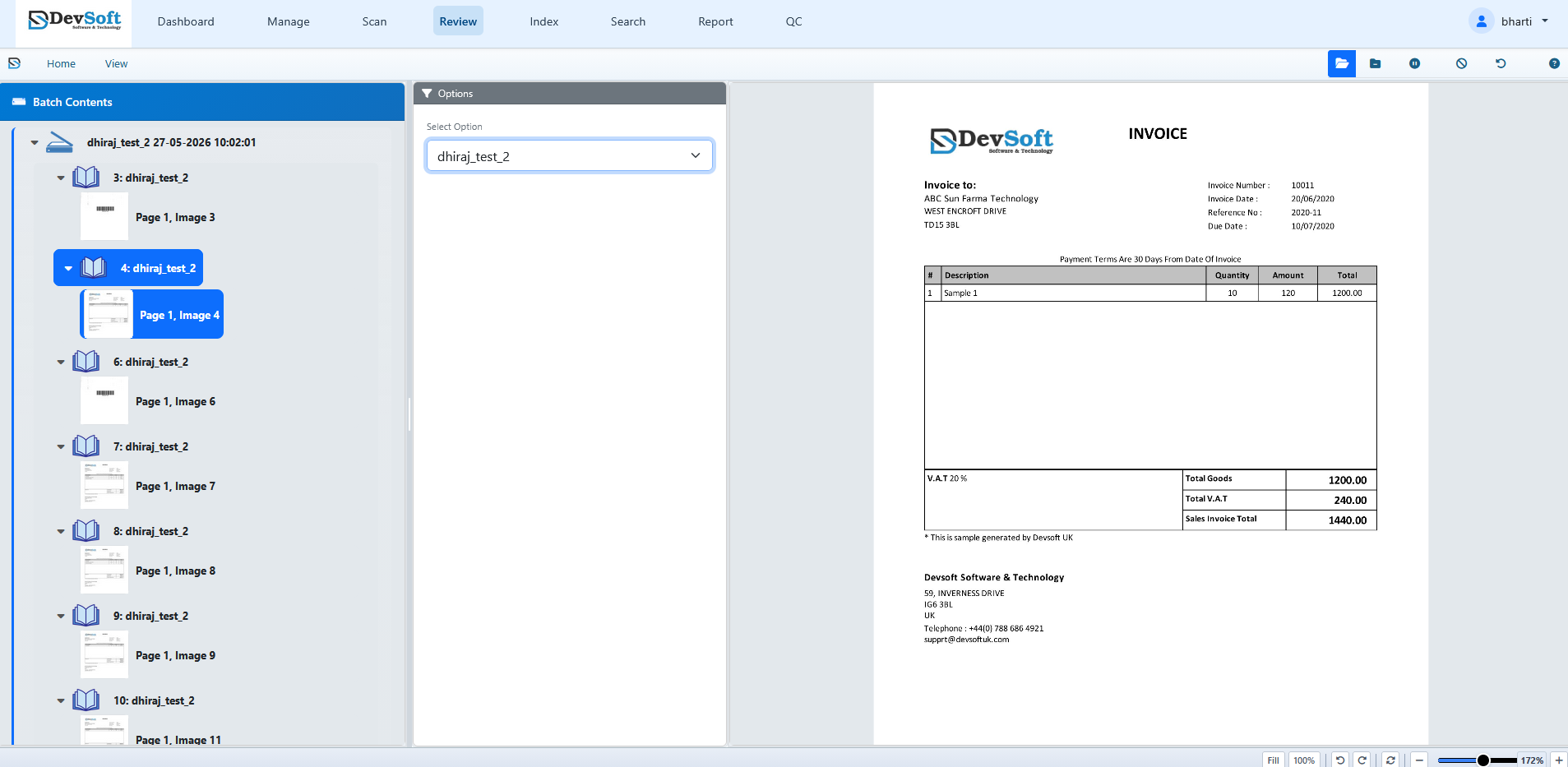
1. Batch Tree (Left Panel)
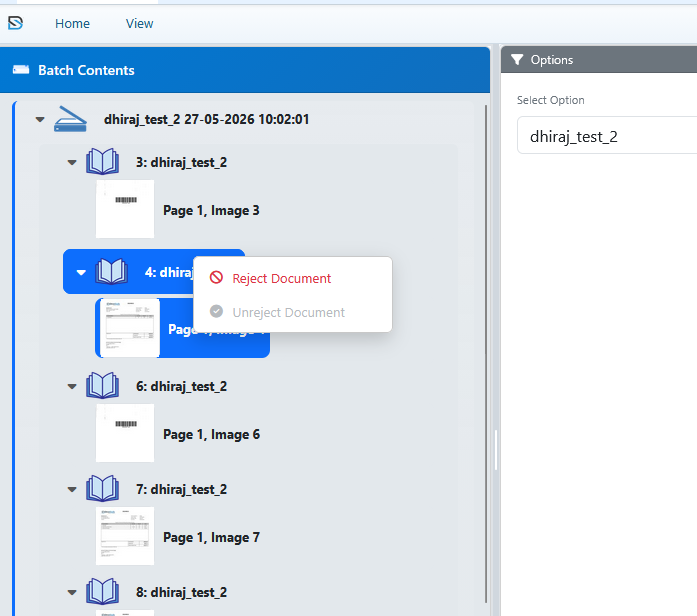
Navigate the hierarchical document and page structure. Each document displays its current classification and status.
2. Document Classification Panel (Middle Panel)
Displays the Options card with the Select Option dropdown. Reviewers can use this dropdown to view the document's assigned template or change its classification (reclassify) if the template is wrong.
3. Image Viewer (Right Panel)
Displays the selected page image at full resolution. It features canvas panning, zooming, and fits (Fit Width, Fit Height, Whole Page, or Fit 100%) to inspect the document's quality.
What to Check
- Image quality – Ensure pages are legible, correctly oriented, and free of scanning artefacts.
- Classification – Verify that each document has the correct form type (template) assigned using the middle classification panel.
- Completeness – Check that no documents or pages are missing from the batch.
Keyboard Navigation
For rapid processing, the Review workspace supports keyboard navigation to move between items without using the mouse:
- Alt + Tab or Alt + Arrow Down – Automatically advances to the next document in the batch tree.
Key Actions
- Approve – Confirm that the document's structure and index data are correct.
- Reject – Send the document back to the Indexing queue for correction.
- Reclassify – Change the document form type if the classification is wrong.
- Add notes – Record review comments for audit or operational tracing.
- Close batch – Finalise the batch so it moves to export or the next configured stage.
- Suspend batch – Hold the batch if further investigation is required.
Audit Trail
Review actions are logged automatically. The system records who approved or rejected each document and when, ensuring a complete operational audit trail.