Indexing
The Index module is where operators enter or confirm business data against each document. It presents the document image alongside a dynamic form so data can be captured accurately and efficiently. Well-indexed documents are easier to find, audit, and route to downstream systems.
Opening a batch for Indexing
The Index batch list shows batches that have reached the indexing stage. Select a batch name to open it in the indexing workspace.
Indexing Workspace
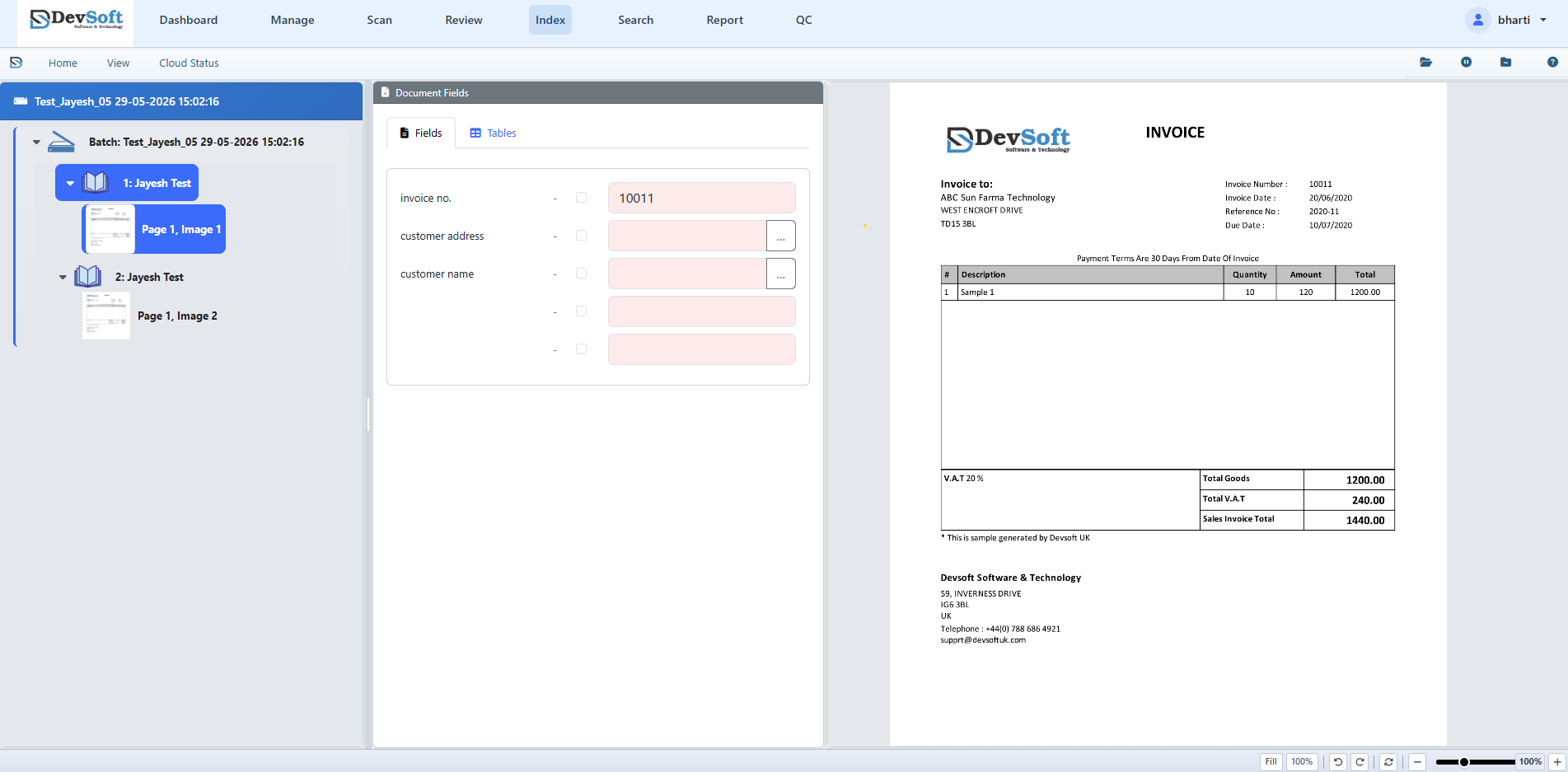
1. Batch Tree (Left Panel)
Navigate through documents and pages in the left panel. The active document is highlighted so you know which document's metadata is being entered.
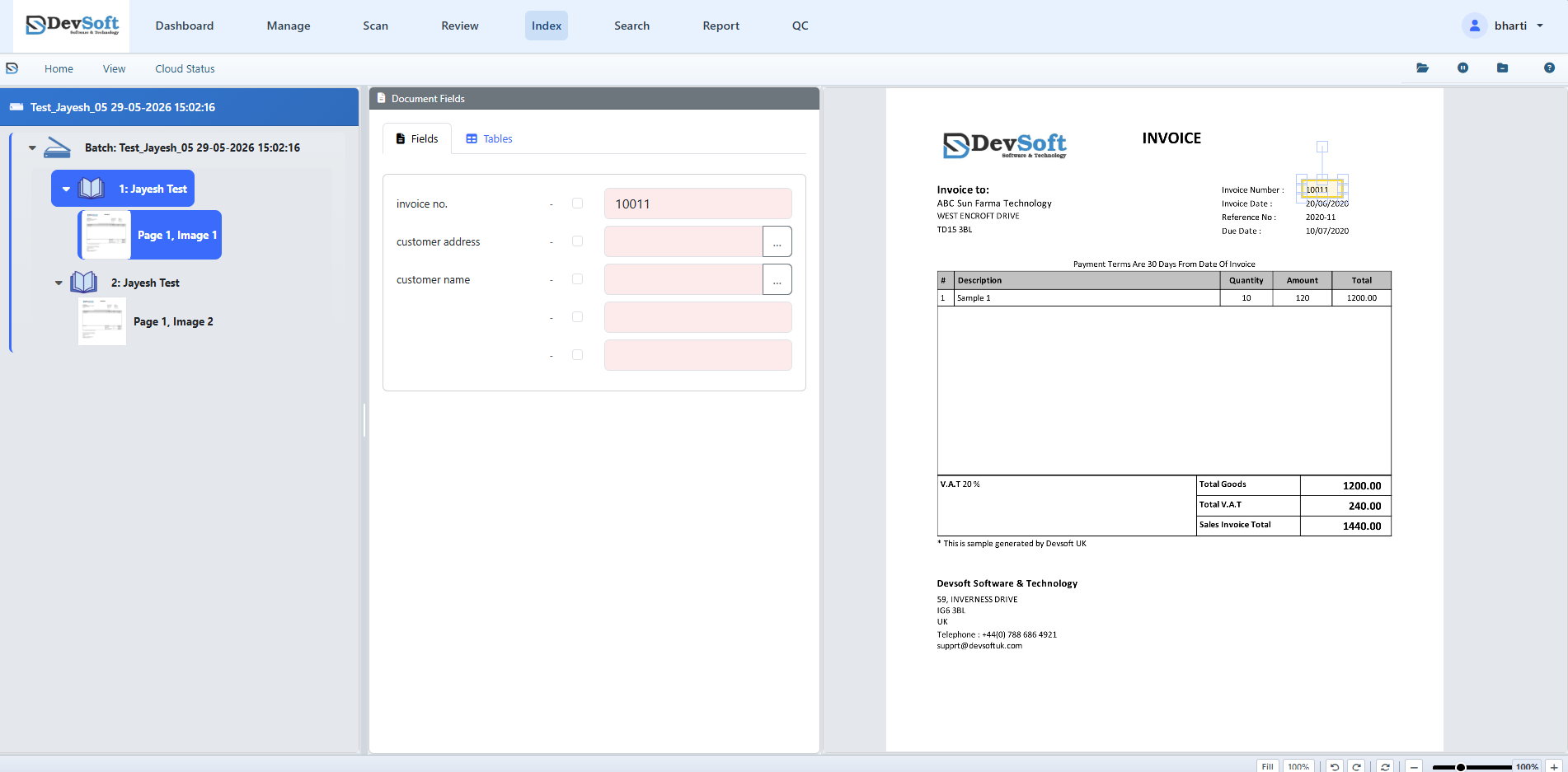
2. Image Viewer & Lasso OCR (Centre Panel)
The center panel displays the page image with zoom, pan, and rotate controls.
- Lasso Tool – Click the Lasso button in the Home ribbon to enable image text extraction.
- How to use Lasso OCR: Click and drag your mouse to draw a box around any printed text on the document image. The system will automatically perform OCR on the selected region and populate the value into the active form field on the right. This significantly reduces manual data entry.
3. Index Form (Right Panel)
Displays dynamic fields configured for the document type (form type). Field types include:
- Text fields – Free-text entry with validation.
- Date fields – Date picker with format validation.
- Dropdown fields – Choose options from pre-defined lists.
- Lookup fields – Trigger database queries to auto-populate related values.
Smart Form Navigation
The indexing workspace includes built-in keyboard shortcuts designed for rapid data entry without requiring you to use your mouse:
- Enter (Instant Validation) – Pressing Enter on any form field instantly validates its value. If valid, the system saves the entry. If the field contains errors, it is highlighted in red. Pressing Enter when no field is active automatically focuses the first invalid field.
- Tab (Error Skipping) – Pressing Tab navigates exclusively through fields that have failed validation (highlighted in red), skipping already-validated fields. Correcting the last invalid field and pressing Tab will automatically save the page and advance to the next document in the batch tree.
Key Actions
- Save – Commit field values for the current document.
- Navigate – Use Previous / Next (or shortcuts) to move between pages and documents.
- Change Form Type – Correct document classification if an incorrect template was assigned.
- Reject – Flag a document containing indexing errors that require administrator attention.
Validation
Fields can have validation rules configured in Admin Setup. When a value fails validation:
- The field is highlighted in red.
- An error message is displayed.
- The operator must correct the value before the document can be saved and the batch closed.
Options and Personalization
You can customize your indexing workspace by opening the DocView Menu (favicon button in the top-left corner) and selecting Options:
- Thumbnail Display – Under the Thumbnail/Cache tab, choose whether to show page thumbnails within the left Batch Contents tree panel.
- Overlay Font Settings – Under the Font tab, customize the font style, font size, underline/strikeout effects, and script encoding used for drawing overlay highlights in the Image Viewer.
Data Accuracy
Use lookup fields and the Lasso OCR tool wherever possible. A single lookup search or Lasso extraction can auto-populate multiple fields at once, reducing keying errors.