User Groups
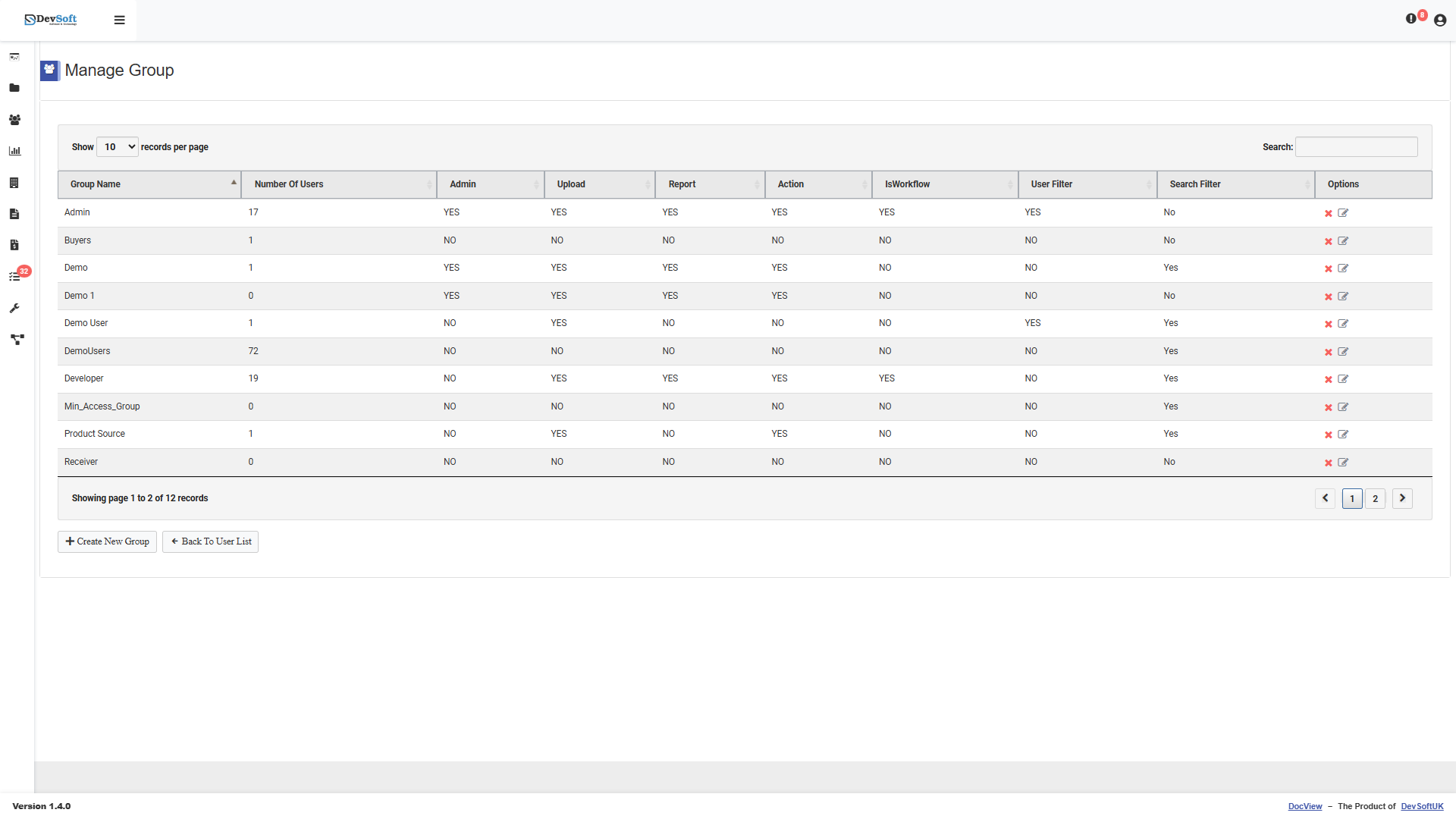
User Groups let you organise users by department, team, or function. Document-type permissions and visibility rules are assigned at the group level, simplifying administration when your organisation has many users.
How Groups Work
Instead of configuring document-type access for each user individually, you assign access at the group level. When a user is added to a group, they automatically inherit all the document-type permissions associated with that group. A user can belong to multiple groups, and their effective permissions are the union of all group permissions.
Creating a Group
- Navigate to Manage Groups (accessible from the administration area).
- Click Add New Group.
- Enter a group name (e.g. “Finance Team”, “HR Department”, “London Office”) and an optional description.
- Click Save.
Assigning Users to Groups
You can assign users to groups in two ways:
- From the group detail page – Open a group and click Add Members. Select users from the list and save.
- From the user profile – When creating or editing a user in Manage Users, select the groups the user should belong to.
Group Permissions & Document Types
When creating or editing a group, administrators can granularly define access for different document types. Access levels can be assigned specifically for:
- View: Permission to open and read documents.
- Edit: Permission to modify document metadata.
- Upload: Permission to add new documents of this type.
Additionally, groups can be configured with Search Filters, which dynamically restrict the documents group members can view based on specific document information, providing an extra layer of data security.
Editing and Deleting Groups
Click a group to edit its name, description, or member list. Deleting a group removes the association but does not delete the users – they simply lose the permissions that were inherited from that group.
TIP
Design your group structure to mirror your organisational hierarchy. This makes it easy to manage permissions as people join, move between departments, or leave.