🛒 Purchase Orders
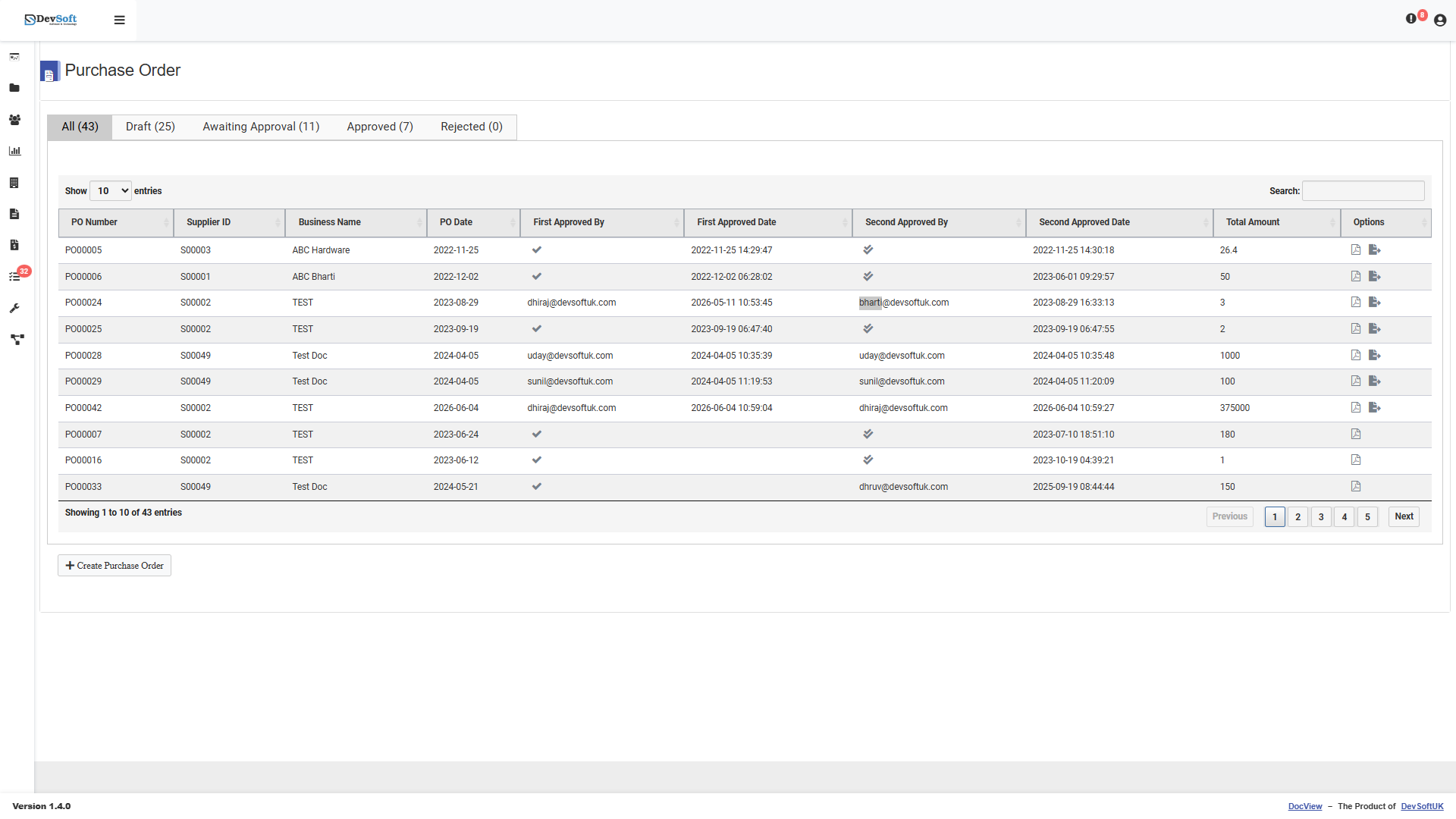
The Purchase Orders (PO) module lets your organisation create, manage, and track purchase orders directly within DocView Web. POs seamlessly integrate with the document management system, allowing supporting documents (quotes, invoices, delivery notes) to be attached and automatically linked.
✨ Key Features & Enhancements
- Role-Based Access: Granular permissions (e.g., creation and approval rights) ensure that only authorised personnel can create or approve POs.
- Supplier Registration: Enforced supplier registration guarantees that you only deal with approved suppliers.
- Dynamic PO Sharing: Instantly share approved POs via email, automatically attaching a high-quality PDF version of the purchase order.
- Flexible Revisions: Rejected POs can easily be moved back to a Draft status, allowing creators to address rejection notes and resubmit without starting from scratch.
📝 Creating a Purchase Order
- Navigate to Purchase Order in the left sidebar.
- Click Create New PO.
- Select Supplier: Choose a supplier from your approved supplier list. (Note: Enforced registration ensures only valid suppliers appear).
- Fill Header Details: Enter PO Date, Delivery Date, Currency, and a Description.
- Add Line Items: Click Add Line to detail the items. Enter descriptions, quantities, unit prices, and tax rates. Line and overall totals calculate automatically.
- Save or Submit:
- Click Save to keep it as a draft.
- Click Submit for Approval to kick off the approval workflow.
📊 PO Statuses
| Status | Description |
|---|---|
| 📄 Draft | Saved but not yet submitted. Rejected POs can be reverted to this state for correction. |
| ⏳ Awaiting Approval | Submitted and awaiting manager review. |
| 🟢 Approved | Fully signed off and ready for action. PDF copies can now be generated and shared. |
| 🔴 Rejected | Declined by an approver. A rejection reason is captured for the audit trail. |
| ✅ Completed | Goods/services received and the PO is closed. |
⚙️ Managing Purchase Orders
- Editing & Unsubmitting: You can edit a PO in Draft status. If you accidentally submit a PO, you can Unsubmit it before it gets approved, bringing it back to a draft state.
- Linking Documents: Attach supporting documents (e.g., vendor quotes) from the document repository directly to your PO.
- Sharing: Once a PO is Approved, use the Share PO action to instantly email a PDF copy to the supplier or internal stakeholders.
TIP
Need a new supplier? Use the Suppliers module to complete their registration and approval process first, as DocView restricts PO creation to verified vendors.