Quality Control (QC)
Quality Control is where operators correct document structure, improve image quality, and ensure a batch is ready for indexing, review, or later workflow stages. It prevents poor-quality input from reaching downstream processes.
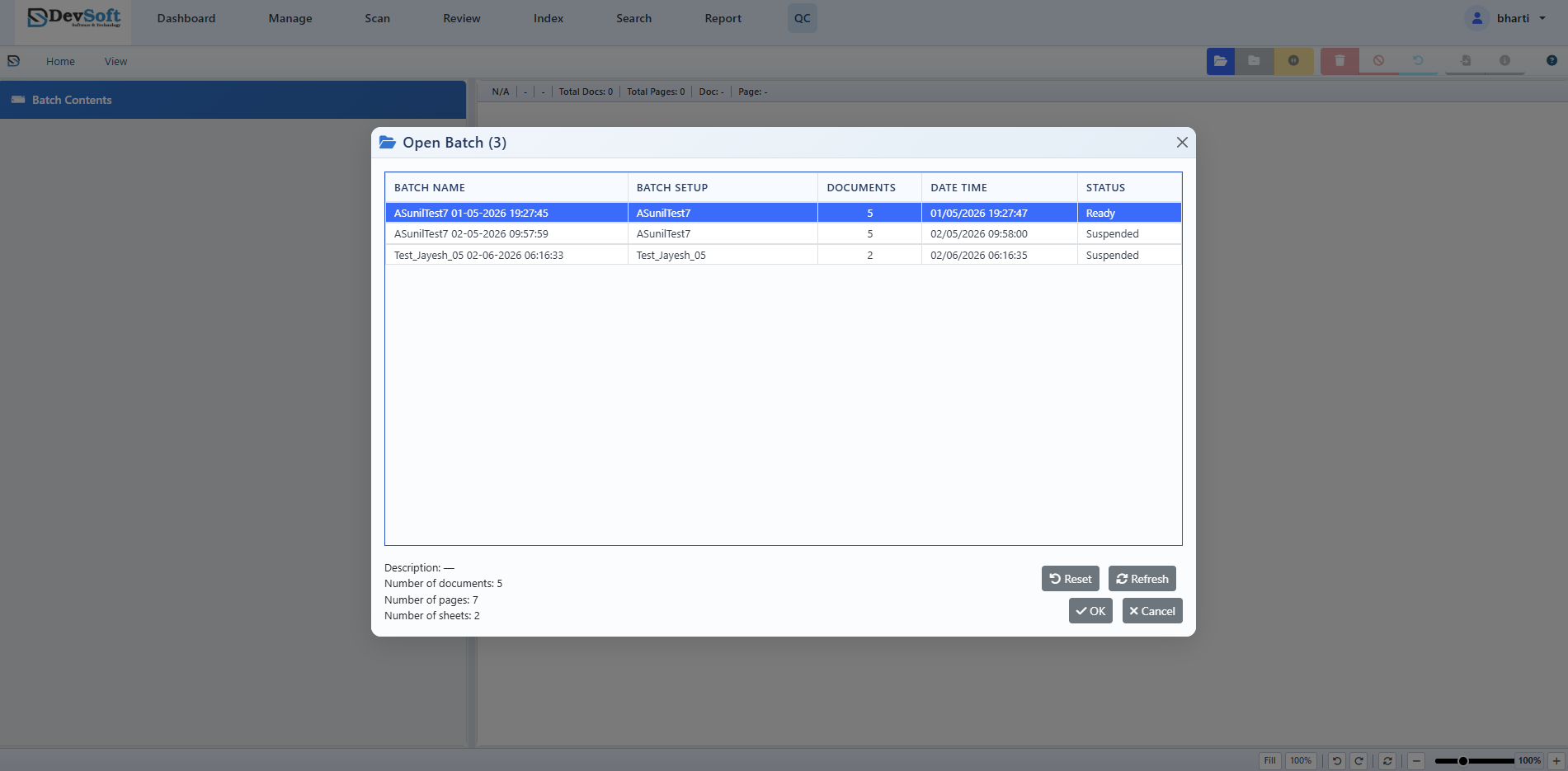
Opening a batch for QC
The QC batch list shows all batches currently waiting at the QC stage. Each row displays the batch name, document count, page count, sheet count, description, date, and status.
- Click a batch name to open it in the QC workspace.
- Use the Filter button to narrow the list by status, date, or batch name.
- Click Refresh to reload the latest batch statuses.
QC Workspace Layout
1. Batch Tree (Left Panel)
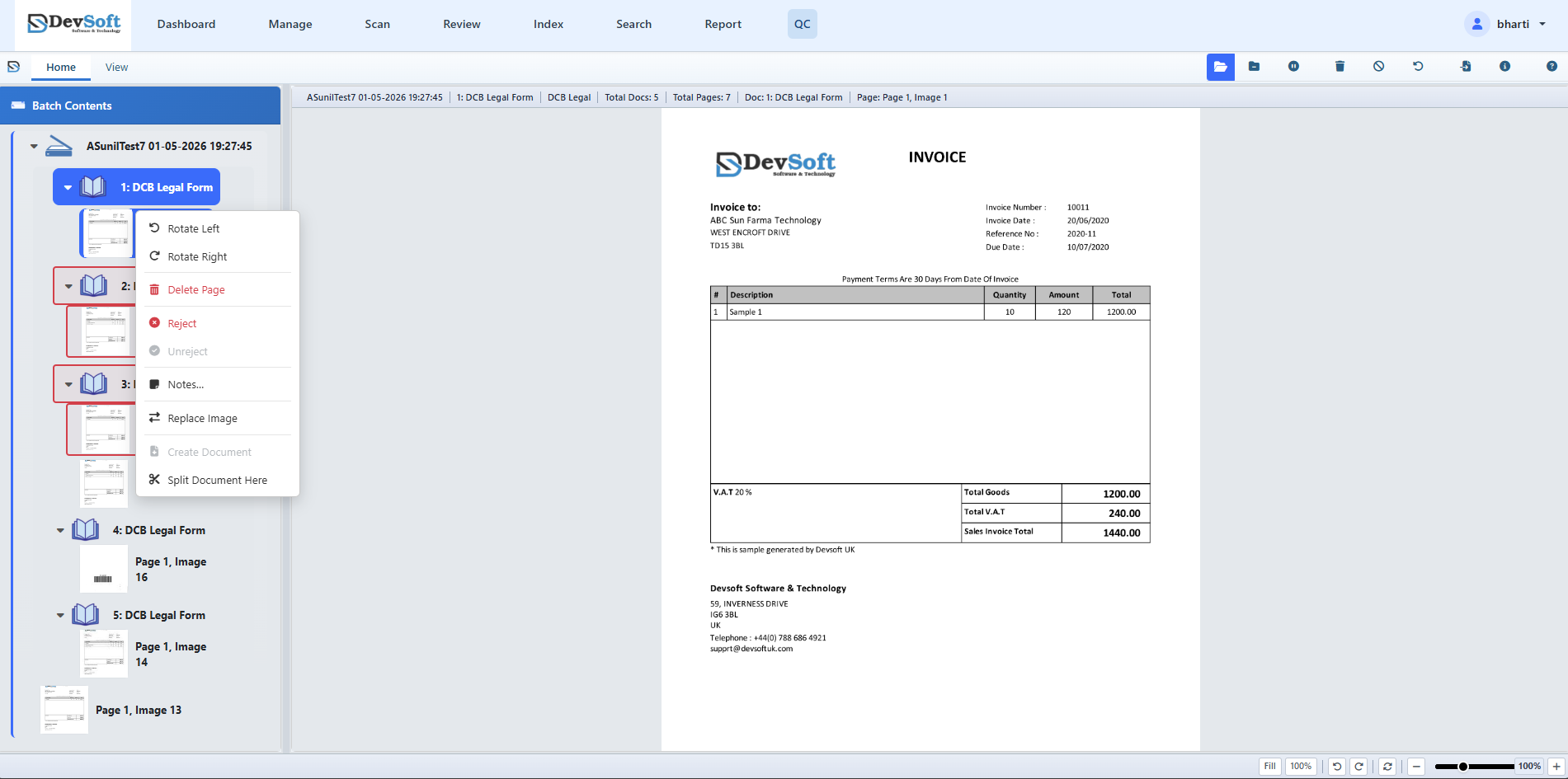
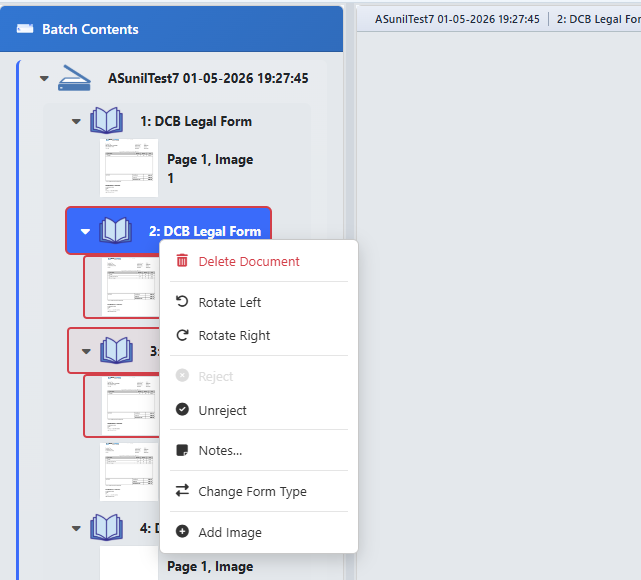
The left panel displays the hierarchical structure of the batch. You can right-click any node (Batch, Document, or Page) to trigger context menu actions:
- Create Document – Insert a new empty document.
- Split Document – Break pages apart when multiple pages were scanned together.
- Merge Documents – Combine documents that were incorrectly separated.
- Reorder Pages – Drag and drop or use move actions to fix page sequence.
- Delete Items – Remove blank, duplicate, or irrelevant pages and documents.
2. Document Fields Panel (Middle)
Accessible by toggling Document Fields under the View > Panels ribbon tab:
- Displays the dynamic index form fields panel.
- Allows QC operators to view or edit index values alongside structural corrections.
3. Image Viewer (Right Panel)
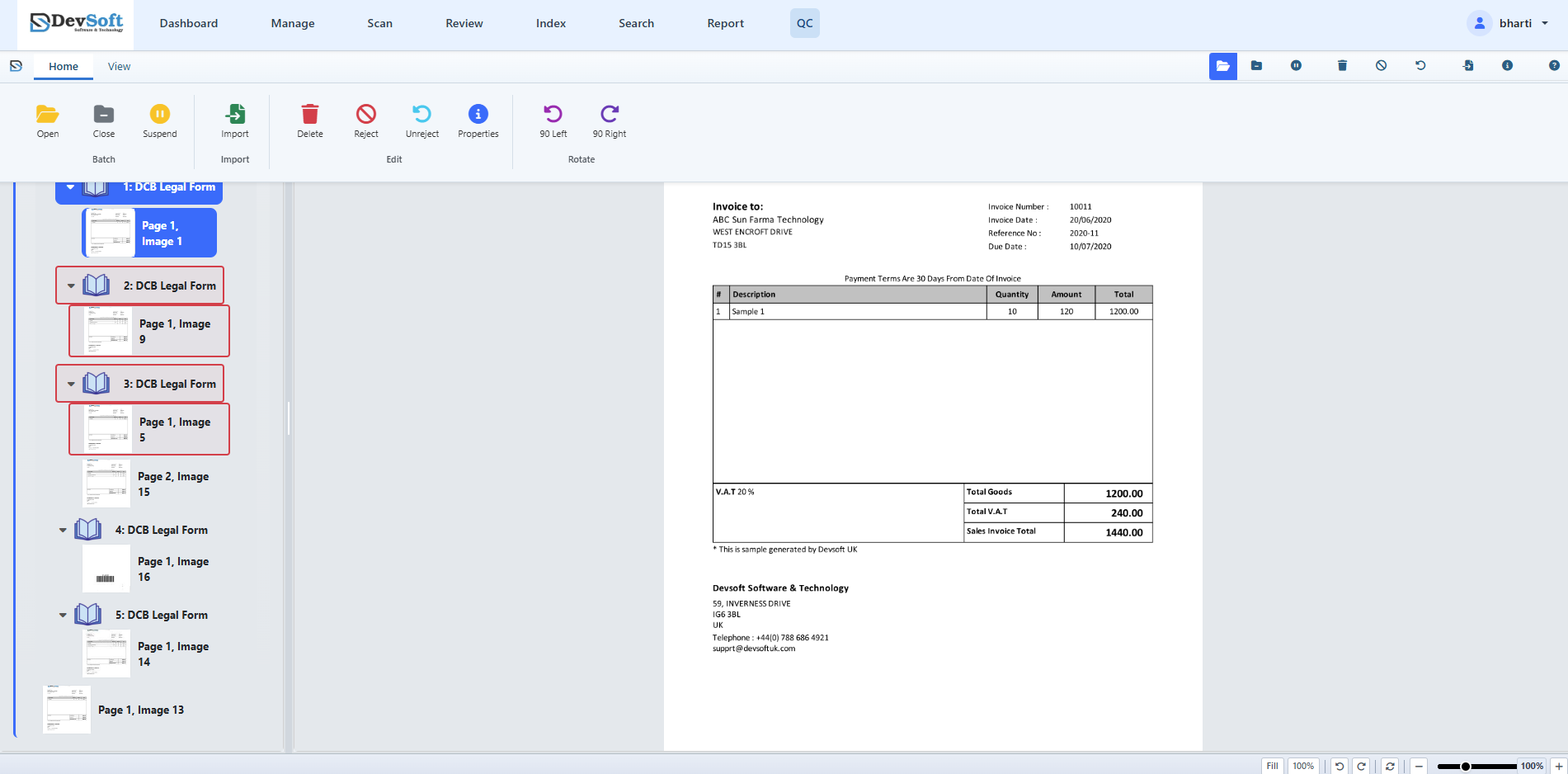
Displays the currently selected page image at full resolution. It features canvas panning, zooming, and fits (Fit Width, Fit Height, Whole Page, or Fit 100%).
Rejecting and Unrejecting Items
During quality control, you may encounter documents or individual pages that contain issues preventing them from being processed (such as torn sheets, unreadable text, or scanning errors). Rather than deleting them immediately, you can flag them as Rejected so they can be addressed or rescanned later.
How to Reject or Unreject:
- In the Batch Tree panel on the left, select the document or page node that has an issue.
- In the Home Tab of the ribbon toolbar, click the Reject button. The node in the tree will display a red indicator, flagging it for review.
- To reverse this and remove the flag, select the rejected node and click the Unreject button in the ribbon.
Ribbon Actions
Home Tab
- Batch – Open, close, or suspend batches.
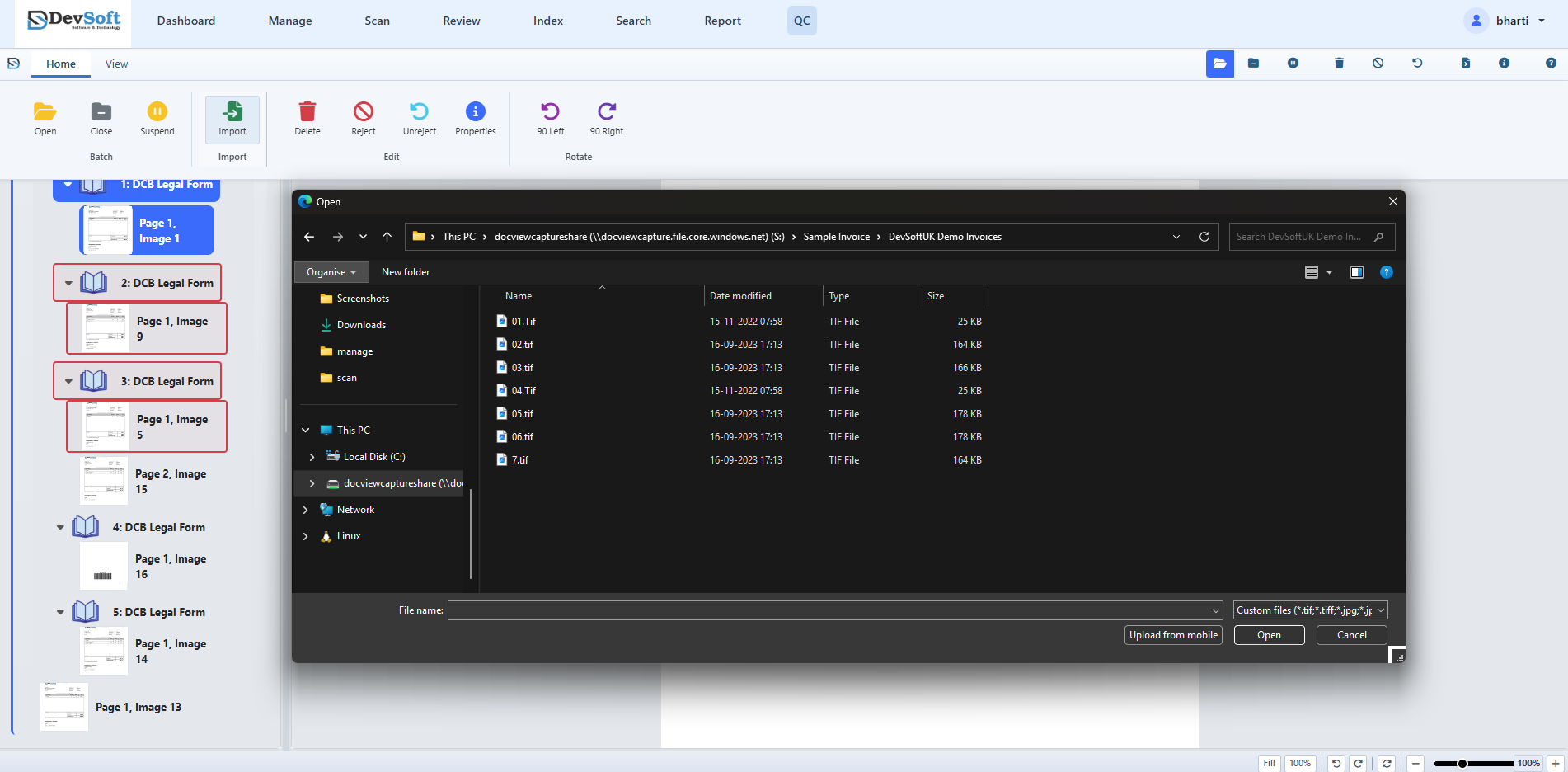
- Import – The Import button opens a file chooser accepting
.tif,.tiff,.jpg,.jpeg,.png,.bmp, and.pdffiles. Operators can upload digital files directly to insert them into the active batch. - Edit – Delete nodes, flag items as Reject or Unreject, and check batch properties.
- Rotate – Rotate selected images 90° Left or 90° Right.
View Tab
- Batch View – Toggle showing all tree nodes or only rejected nodes.
- Panels – Toggle Batch Contents, List View, and Status Bar layouts.
- Zoom – Fit canvas views.
Keyboard Shortcuts
For rapid processing, the QC workspace supports standard keyboard actions:
- Ctrl + O – Open Batch list
- Ctrl + L – Close Batch (advances it in the workflow)
- Ctrl + S – Suspend Batch (saves progress for later)
- Ctrl + D – Delete selected document/page node
- Alt + Enter – Open Batch Properties dialog
- F11 / F12 – Color scanning triggers (when scanner is connected)
Status Colours
Ready (green), In Progress (blue), Suspended (amber), Completed (cyan), Error (red). These appear as badges in the batch list.