User Profile
The User Profile page lets you view your account details, update personal information, change your password, and review your recent login activity.
Viewing Your Profile
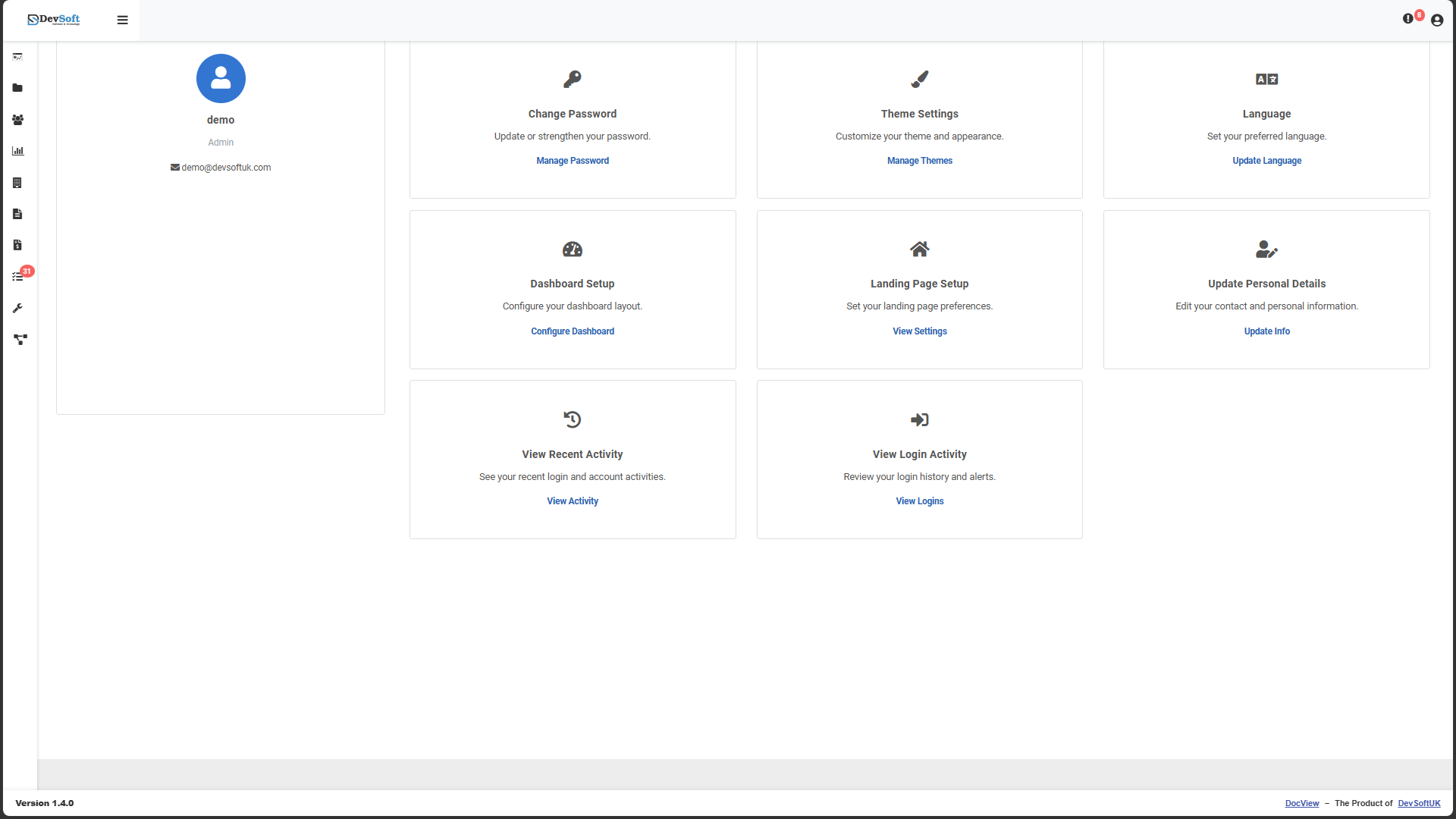
- Click your name or avatar in the top-right corner of the navigation bar.
- Select Profile from the dropdown menu.
Your profile page displays the following information:
| Field | Description |
|---|---|
| Full Name | Your first and last name as registered in the system. |
| Email Address | Your login email. This is read-only – only administrators can change it. |
| Role | Your assigned role (e.g. User, Manager, Admin, HR, Super Admin, System Admin). |
| Groups | The user groups you belong to (used for document-type visibility and permissions). |
| Last Login | Date and time of your most recent successful sign-in. |
Profile Settings & Preferences
The User Profile page displays a grid of cards, each opening a dedicated settings modal. Depending on your system permissions, you will see the following options:
1. Change Password
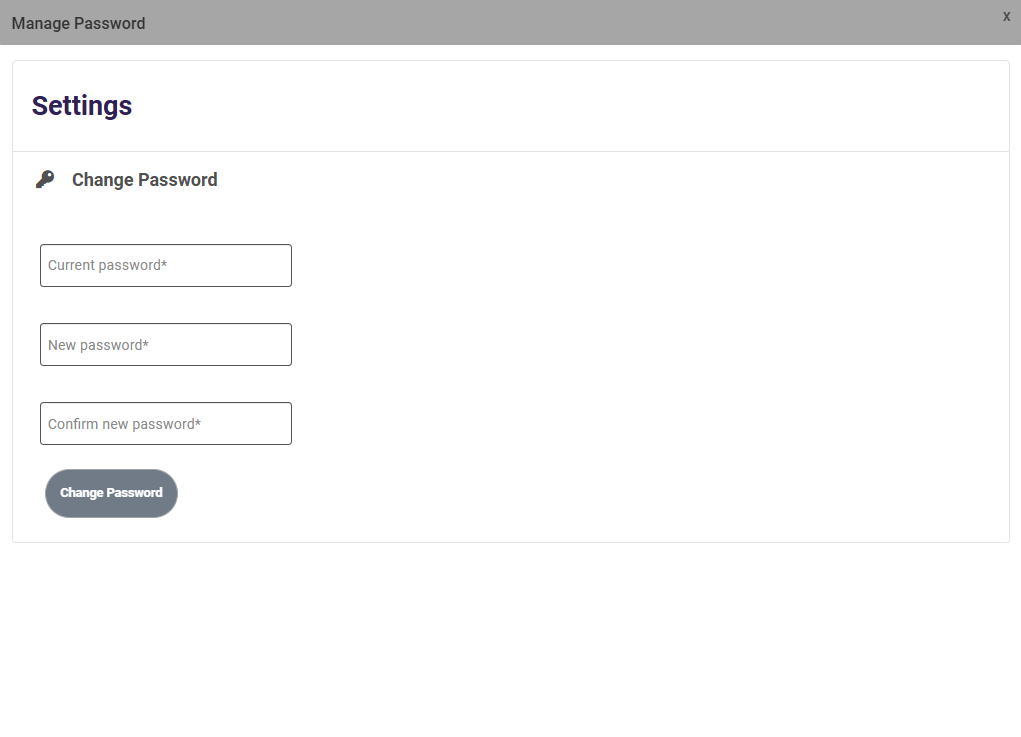
Allows you to update your login password. You must enter your current password, followed by a new password that meets the organisation's complexity rules (at least 8 characters, including a mix of uppercase, lowercase, numbers, and special characters). (Note: This option may be hidden or disabled if your organisation uses Single Sign-On).
2. Multi-Factor Authentication (MFA)
If enabled by your administrator, this modal lets you manage your Two-Factor Authentication settings. You can set up or reset your connection to an authenticator app (like Google Authenticator or Microsoft Authenticator) for enhanced security.
3. Theme Settings
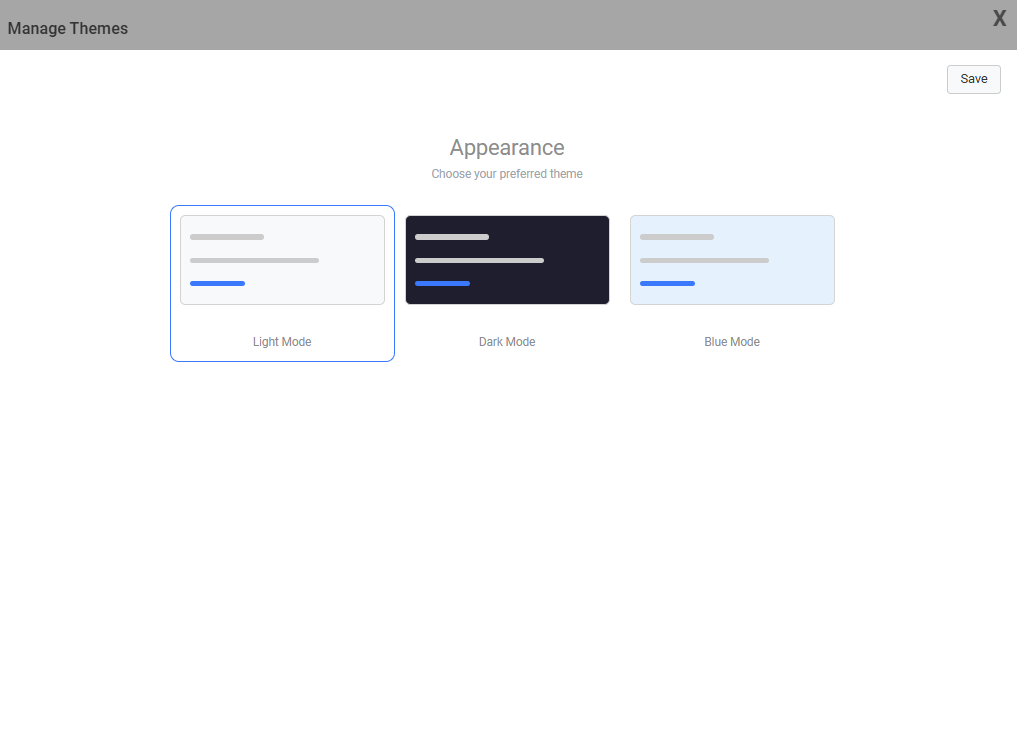
Personalise the look and feel of DocView Web. You can choose from standard themes such as Light, Dark, or Blue to suit your visual preferences.
4. Language Settings
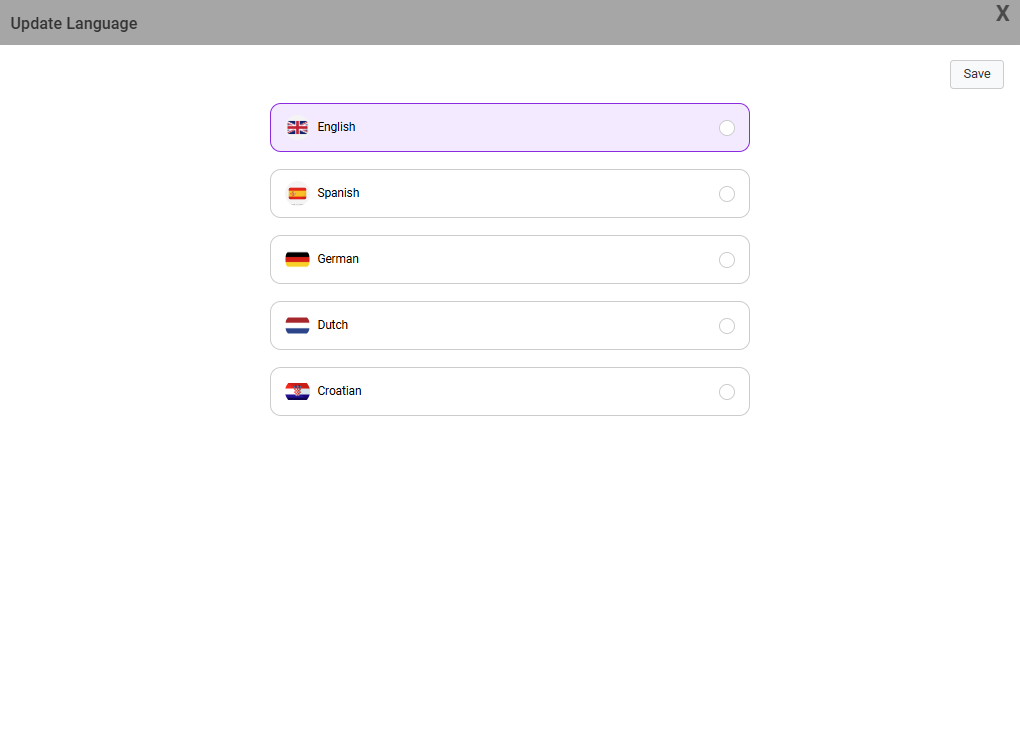
Change the display language of the DocView Web interface. Selecting a new language updates all menus, buttons, and system messages immediately.
5. Dashboard Setup
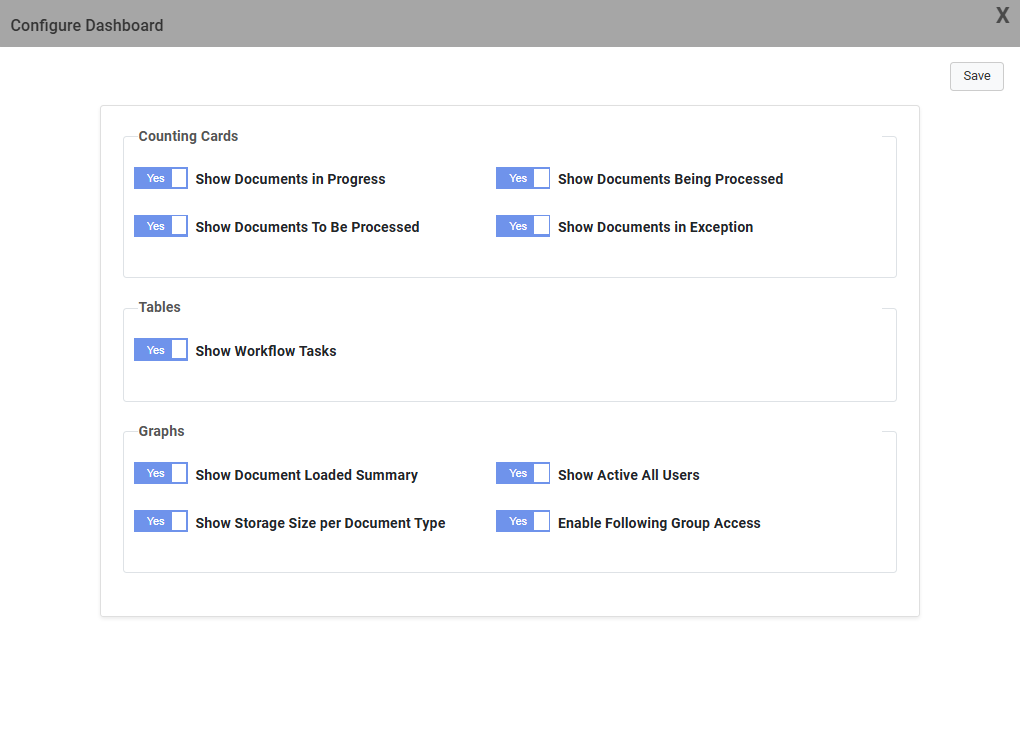
Configure which summary cards and analytics charts appear on your home Dashboard. This allows you to hide irrelevant metrics and focus only on the document statistics you care about.
6. Landing Page Setup
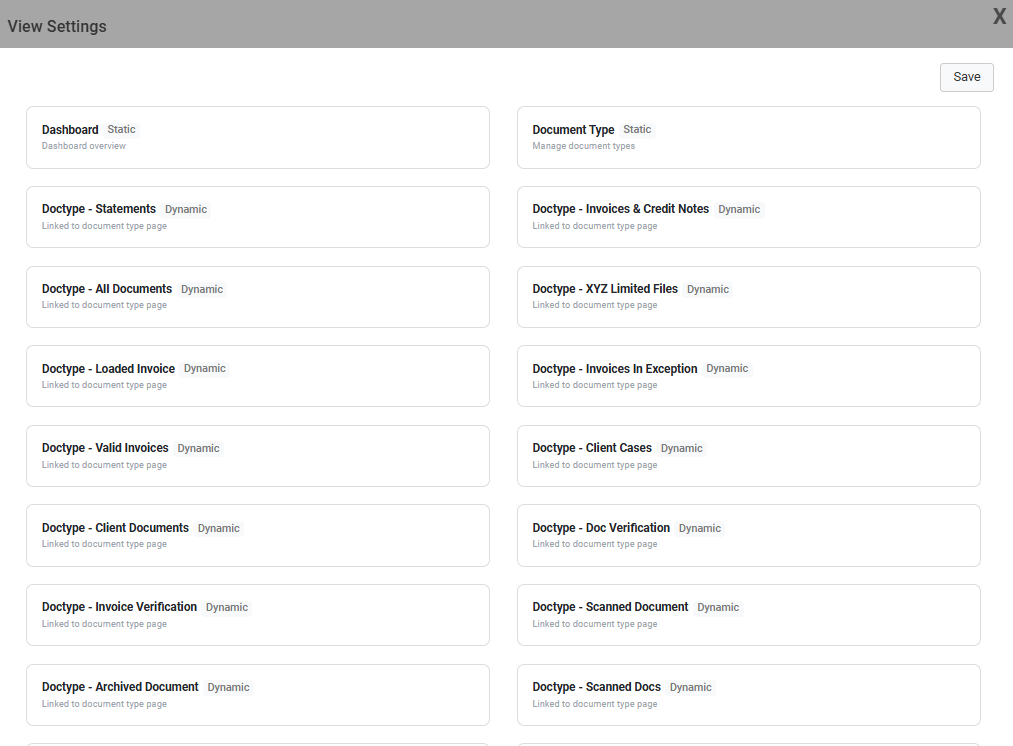
By default, logging in takes you to the Dashboard. This modal allows you to choose a different default starting page (e.g., your Workflows list or the Search screen) to speed up your daily routine.
7. Update Personal Details
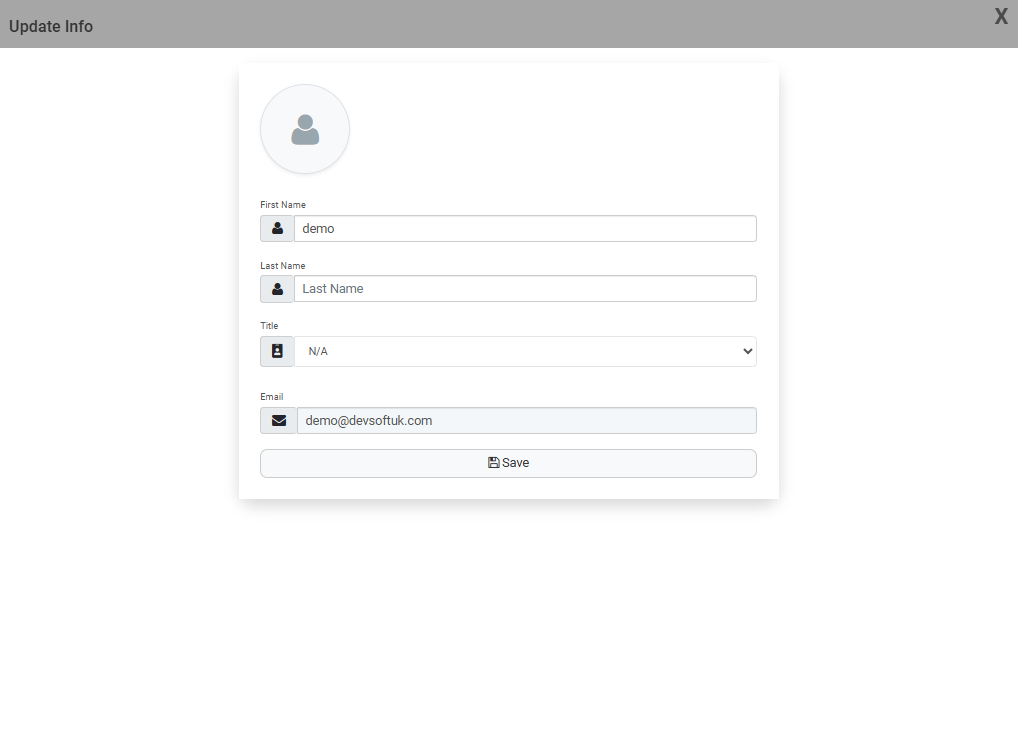
Edit your basic contact information, such as your registered first and last name. (Note: Your email address is usually locked and can only be changed by an administrator).
8. View Recent Activity
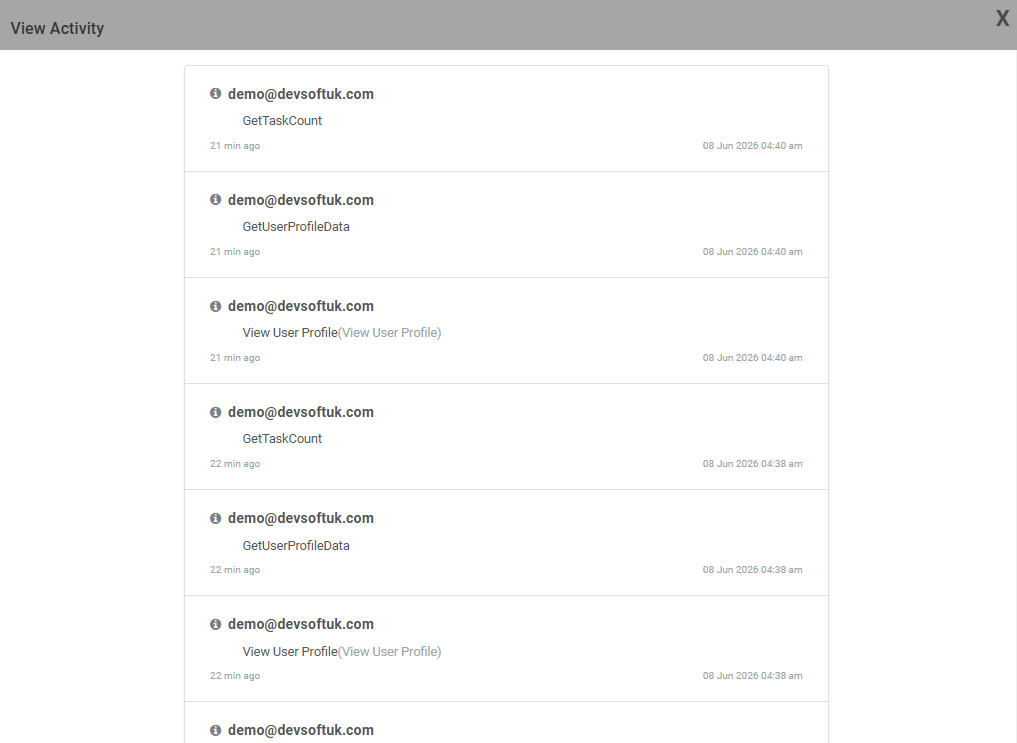
Opens a log of actions you have recently performed within the system (like uploading documents, approving workflows, etc.). This is useful for auditing your own recent work.
9. View Login Activity
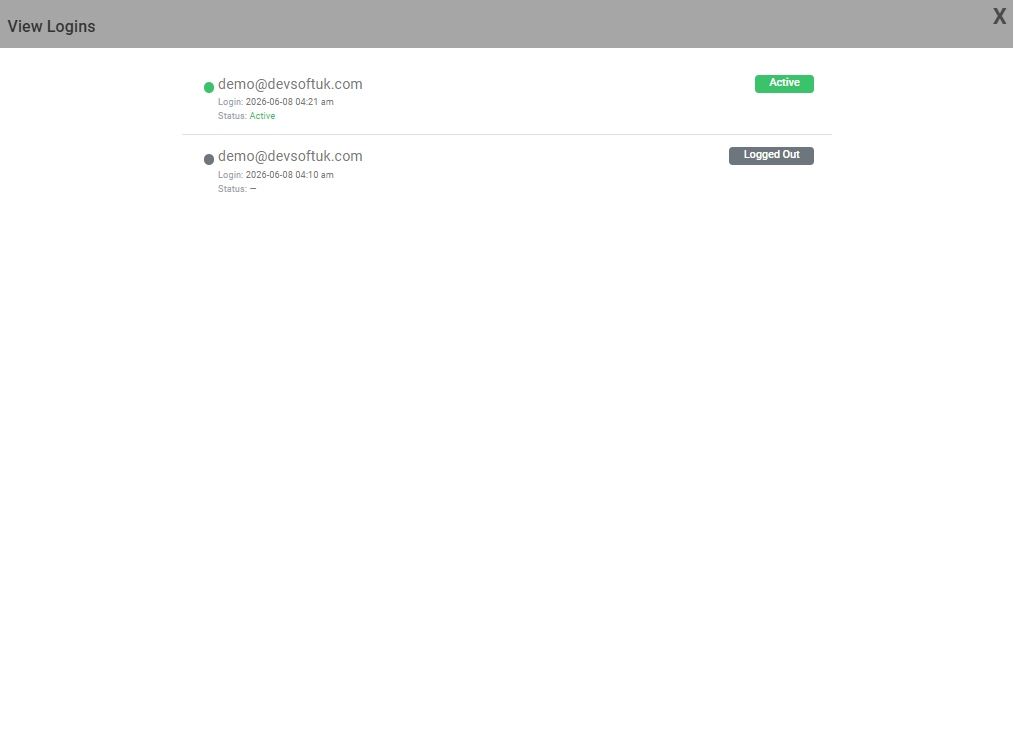
Displays a historical list of when and where your account was logged into, including IP addresses and timestamps. This is a critical security feature to help you spot any unauthorised access.
TIP
Keep your profile information up to date. Accurate details ensure you receive workflow notifications and approval requests without delay.