Login & Authentication
DocView Web supports multiple authentication methods to ensure secure access. This page explains how to sign in, reset your password, enable two-factor authentication, and use Single Sign-On (SSO).
Standard Login
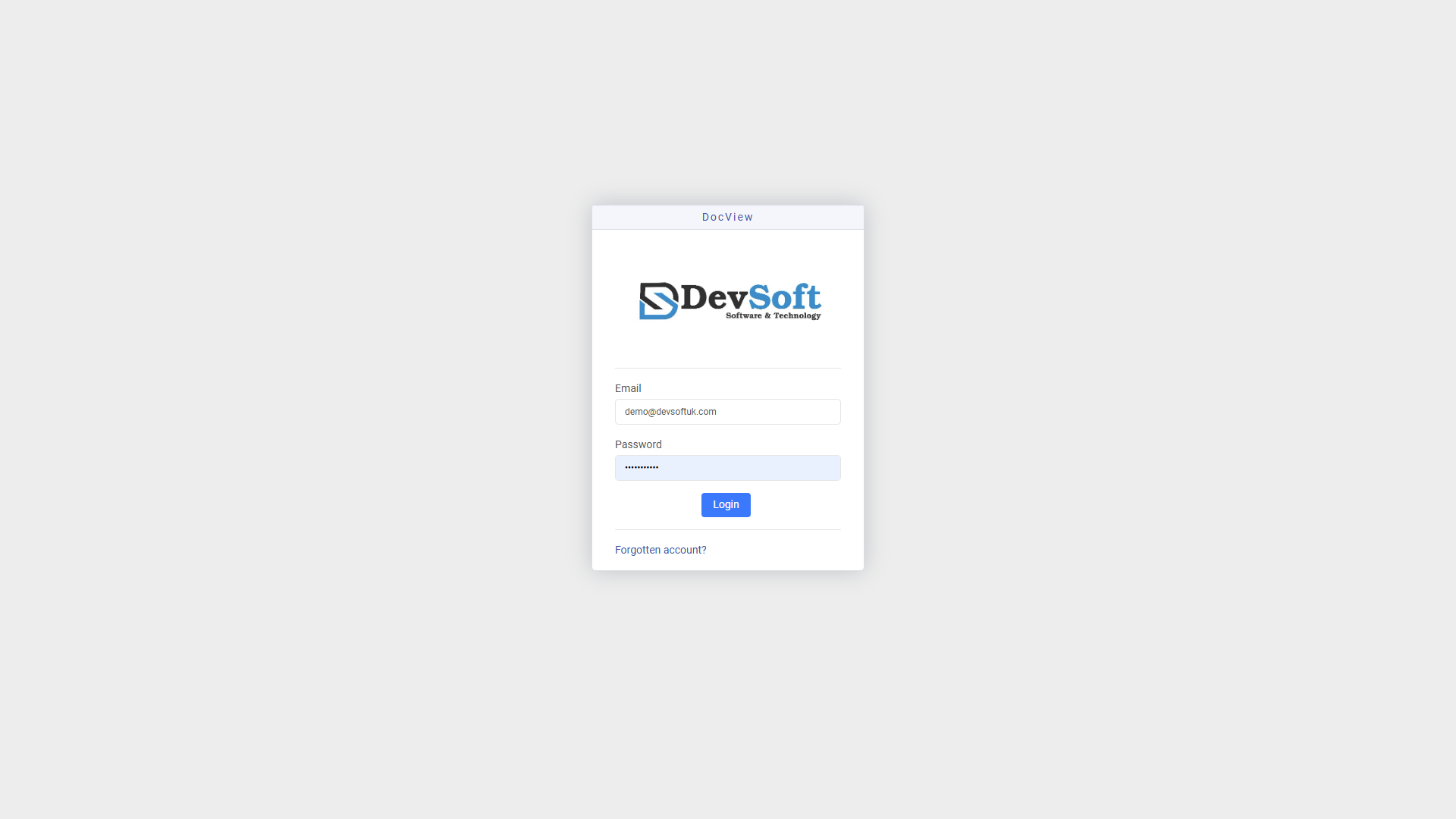
- Open the DocView Web URL in your browser.
- On the Login page, enter your registered email address and password.
- Click Sign In.
- If two-factor authentication (2FA) or Email Authentication is enabled on your account, you will be prompted to enter a verification code sent to your email or authenticator app.
After successful authentication, you are redirected to the Dashboard or your designated landing page.
NOTE
Demo/Trial Login: If your instance has demo capabilities enabled, you may see a Demo Login option. This allows you to explore DocView Web using an auto-generated trial account with a predefined trial period.
Single Sign-On (SSO)
If your organisation has configured Azure Active Directory or SAML-based SSO, a dedicated SSO button appears on the login page. Alternatively, you may be automatically redirected to your identity provider. After authenticating there, you are returned to DocView Web automatically – no separate DocView password is required. User accounts are provisioned automatically upon first successful SSO login if they don't already exist.
INFO
When SSO is active, the standard email/password fields may be hidden, and the Change Password option in your profile is disabled because credentials are managed by your identity provider.
Forgot Password
- Click Forgot Password? on the login page.
- Enter the email address associated with your account and click Submit.
- Check your inbox for a password-reset link (also check spam/junk folders).
- Click the link, enter a new password that meets the complexity requirements, and confirm it.
- Return to the login page and sign in with your new password.
IMPORTANT
Password Complexity: Your new password must be at least 8 characters long and contain at least one uppercase letter, one lowercase letter, one number, and one special character. Password reset links expire after 60 minutes.
Two-Factor Authentication (2FA)
Administrators can enforce two-factor authentication for additional security. When 2FA is enabled:
- After entering your email and password, a verification code is sent to your registered email or authenticator app.
- Enter the code on the verification screen and click Verify.
- If the code is correct you proceed to the Dashboard; otherwise you can request a new code.
Session & Security
- Account Lockout Policy: To protect against repeated, unauthorised login attempts, your account will be locked temporarily after 4 failed login attempts. The lockout duration increases exponentially with subsequent failed attempts (e.g., 5 minutes, 10 minutes, 20 minutes). You can wait for the timeout to expire or reset your password via the Forgot Password feature.
- Session Timeout: After a period of inactivity you will be signed out automatically and redirected to the login page.
- Concurrent Sessions: Depending on your licence and configuration, the system may prevent multiple simultaneous logins using the same credentials to ensure security and compliance.
- Login Activity: Administrators can view recent login activity and invalid access attempts for every user account.
WARNING
Never share your login credentials. If you suspect unauthorised access to your account, change your password immediately and inform your administrator.